

Debugging damage
Usually you would want a weapon controller to call the Damage FX Script Component when you hit an object with a weapon. Following this approach to set the look of the damage on the object might become time consuming. There is a more quicker way with the ApplyDamage.cs script which implements all the necessary tools for the task.
If you’re not familiar with this script, just refer to the example scenes.
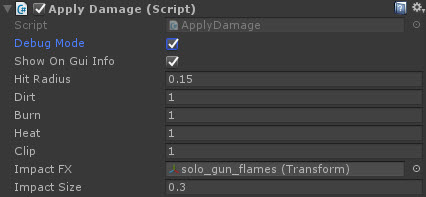
Notice the Debug Mode checkbox which turns the object itself into a real time impact generator given the values from the user input. Enable the Debug Mode and move it around. Use the hotkeys such as W-S, 1-2 and Space to reset.

Additionally, you can set the Damage FX Script Object Decay Tick Rate and Decay Per Tick to zero to stop the glow from fading.
